
LocateXL Server
❖LocateXL Server is a standalone web service providing REST and SOAP Geocoding and Reverse Geocoding endpoints.
❖You would use it for the following reasons:
1.Needing to programmatically validate addresses from any system supporting web API.
2.Programmatically getting addresses of GPS locations.
3.Bulk Geocoding and Reverse Geocoding.
Installation
❖Double click SetupPrimeThought.Spatial.LocateIQ.WinService.exe and follow the LocateXL Server Setup Wizard.

❖To install the Geocode Data, double click on SAData.exe (which is South Africa, or the appropriate country Geocode Data that you received.)

❖In the window that comes up, click on Browse, and select LocateXL Server as the destination folder.
❖Click OK.
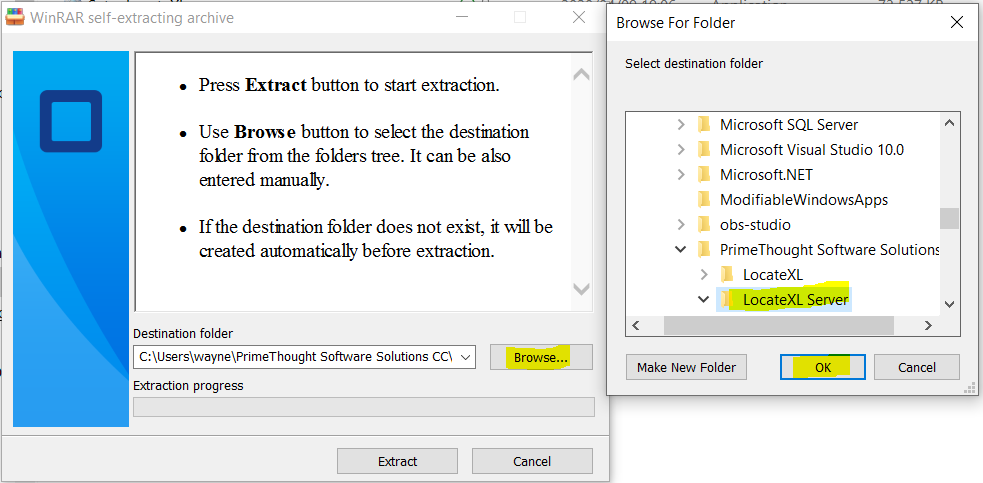
❖The correct path is then inserted into the Destination folder field.
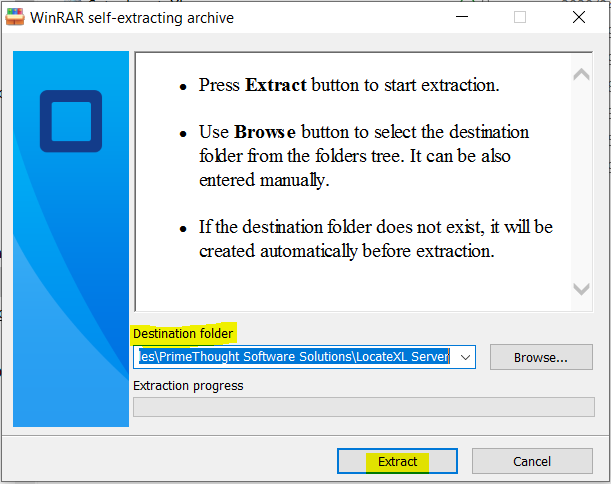
❖Click Extract.

❖The Data folder has been extracted here.
❖You will receive a license that looks like this with your applicable data.

❖PTSS in the example license above is the company name.
❖LocateIQ is the product.
❖Desktop is the edition.
❖100000 is the maximum number of items that can be Bulk or Reverse Geocoded at a time.
❖wayne is the computer name.
❖20201231 is when the license will expire.
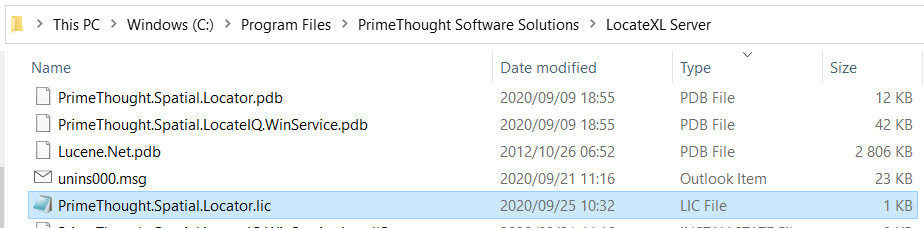
❖Move this license to the correct location (You will need administrator permission to do this):
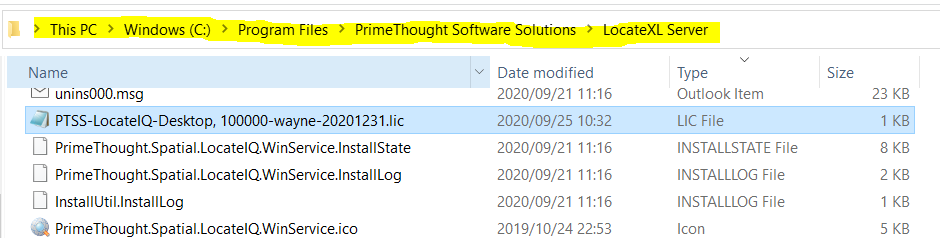
❖Ensure that you have File name extensions checked on in your File Explorer to avoid confusion for the next step.
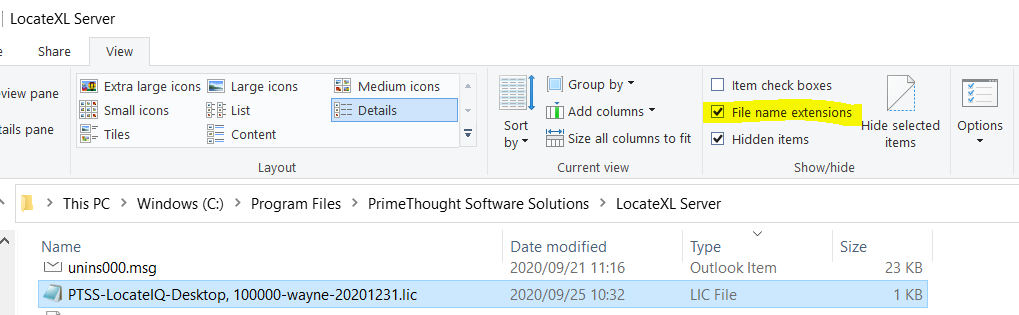
❖Make sure that this LIC File is selected. Then click once on it to edit the name. Change it to PrimeThought.Spatial.Locator.lic (You will need administrator permission to change the name.)
Configuration
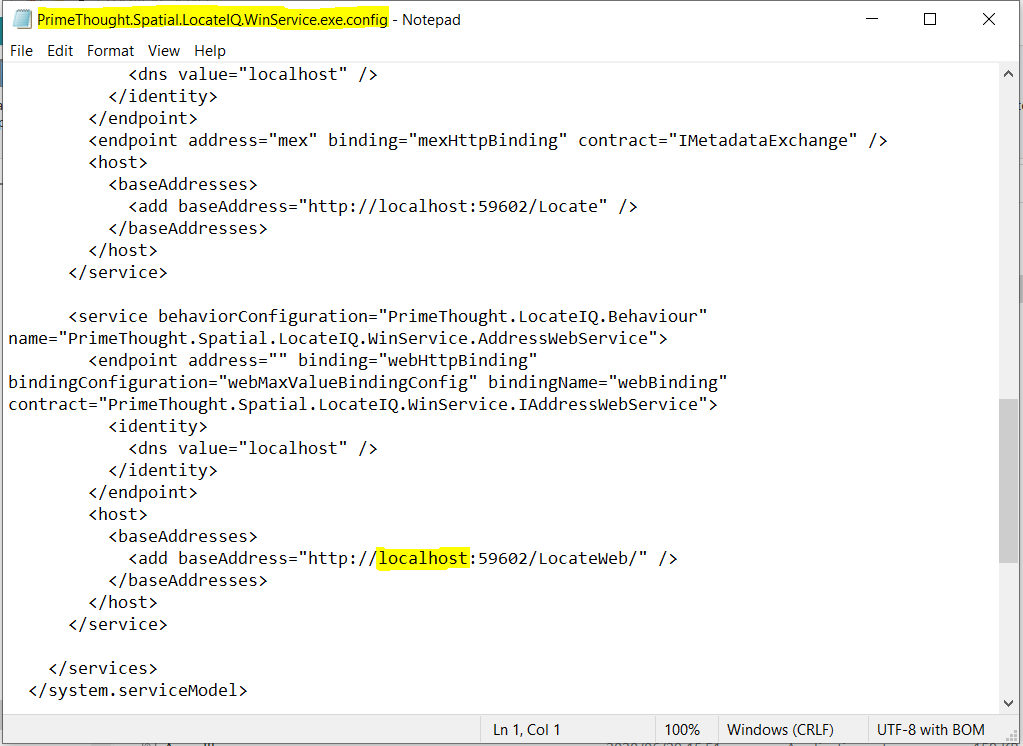
❖To configure the endpoint for REST, double click PrimeThought.Spatial.LocateIQ.WinService.exe.config

❖Change localhost as needed. (You will need administrator permission to save any changes.)
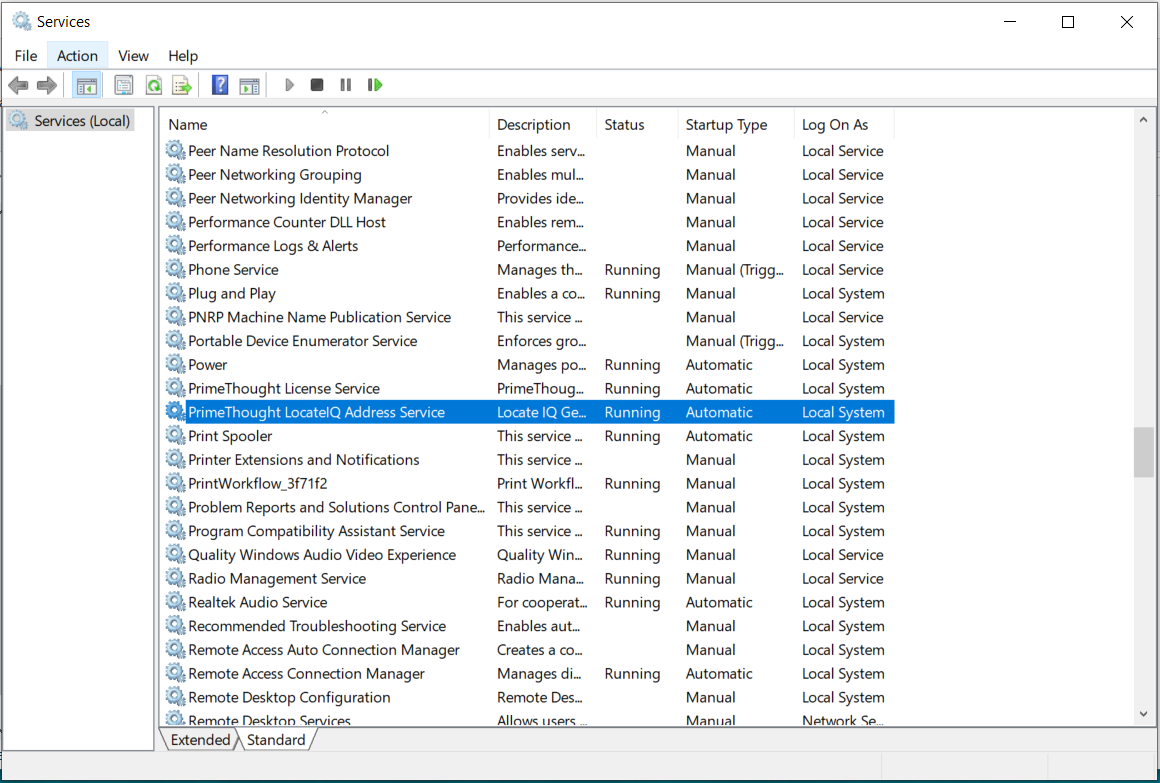
❖To configure Windows Service, open the Services application. Go to PrimeThought LocateIQ Address Service.
❖Double click on it. This service may have automatically started. To ensure the license is loaded correctly for this service, click Stop, and then click Start to start the service again.
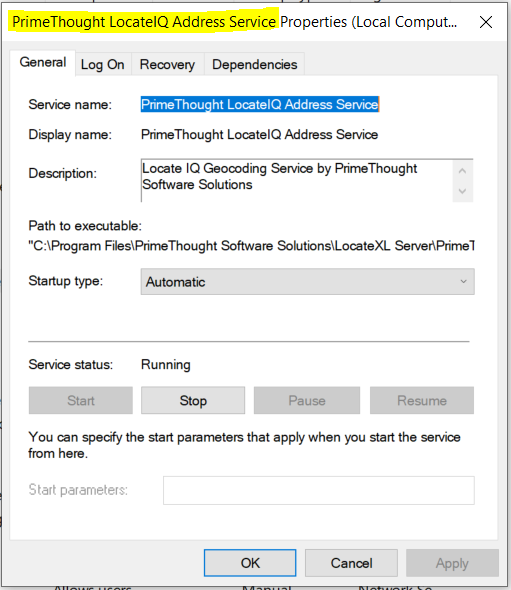
❖Click OK.
❖Open the Event Viewer application to see PrimeThoughtLocateIQAddressService.
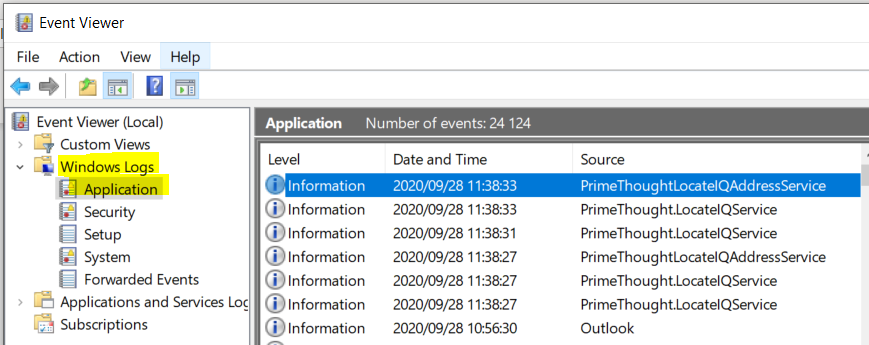
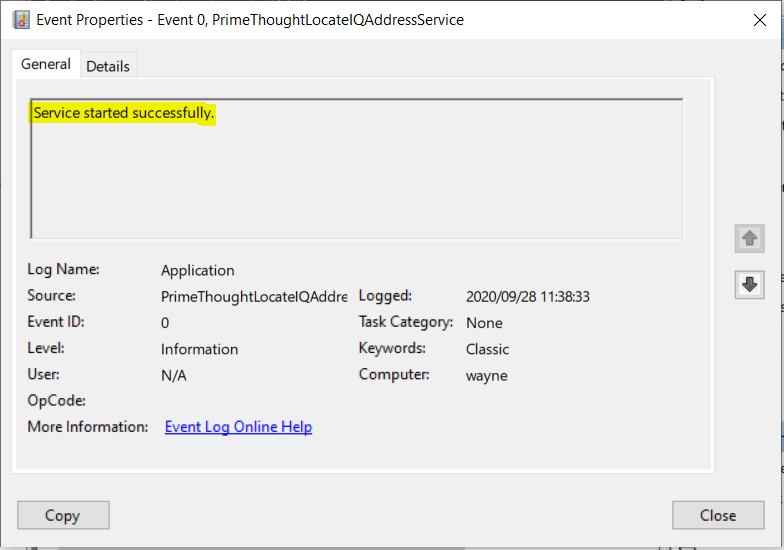
❖If you double click on it, you will see that the service has started successfully.
Testing and Output
❖Open your internet browser and type in the following URL to test the Geocode:
http://localhost:59602/LocateWeb/geocode?address=203%20gosforth%20crescent%20Kyalami
Note: In the CONFIG File noted above, if you changed localhost to another name, you need to put that name in place of localhost in this URL.
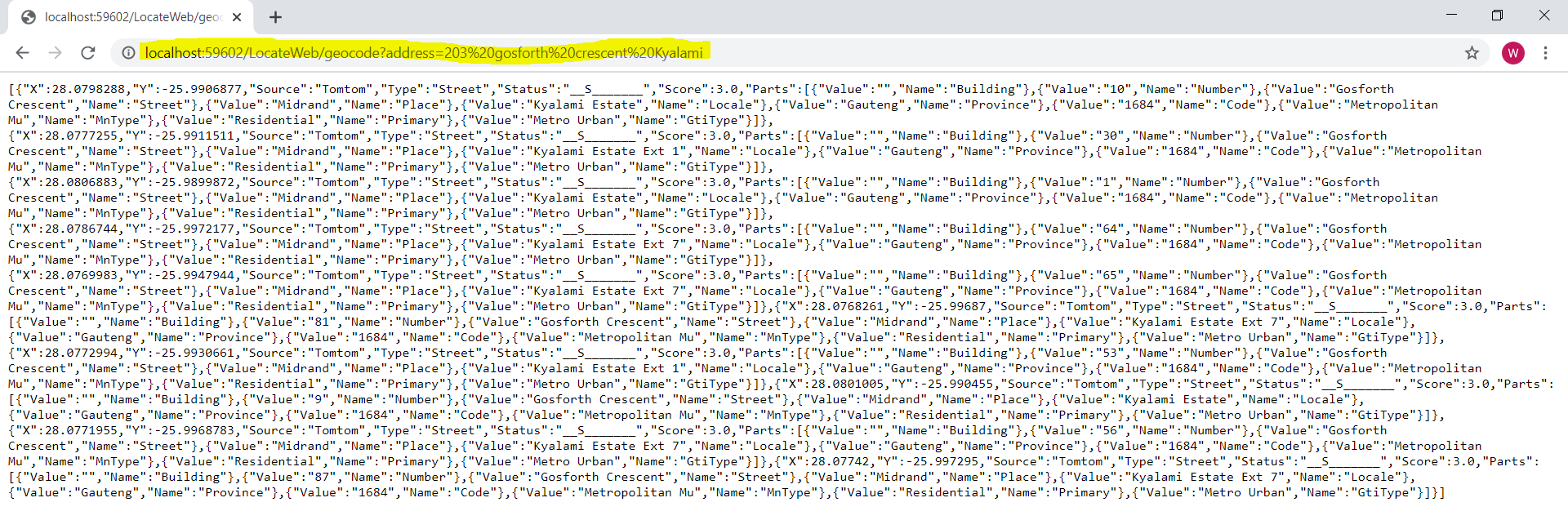
❖The output by default is in JSON format. The Accept Headers can be adjusted if XML is wanted as output.
(“Status”
N = Number
S = Street
P = Place
L = Locale
R = Province
C = Postal Code) These are further explained in the section below Adjusting Settings.)
❖The 7 best matches are listed here.
❖In your Event Viewer application, you can look at this specific event.
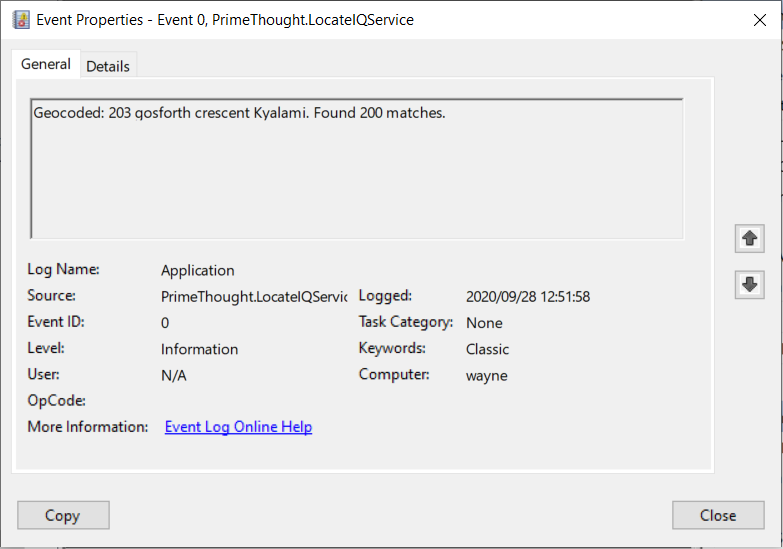
❖200 matches were found as you can see, however the 7 best were only displayed.
❖Open your internet browser and type in the following URL to test the Reverse Geocode:
http://localhost:59602/LocateWeb/reversegeocode?x=28.0807939&y=-25.989989
Note: In the CONFIG File noted above, if you changed localhost to another name, you need to put that name in place of localhost in this URL.

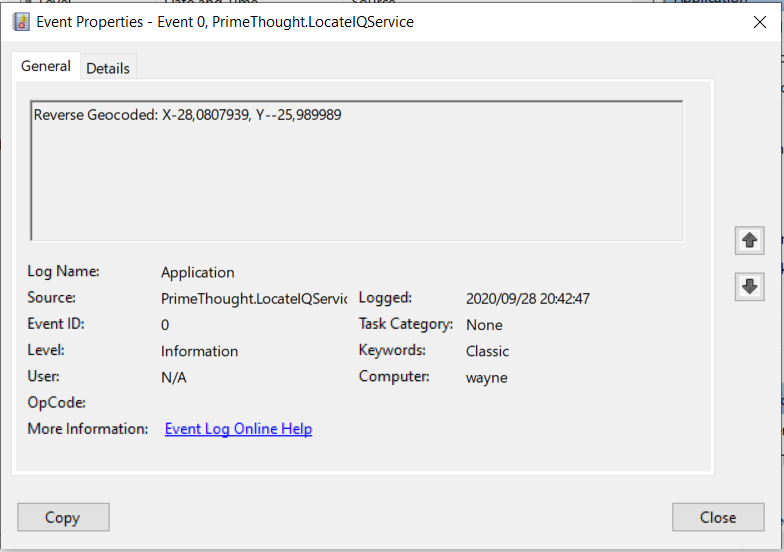
❖In your Event Viewer application, you can look at this specific event.
Adjusting Settings
❖You can have alias settings which will increase the accuracy of your output.
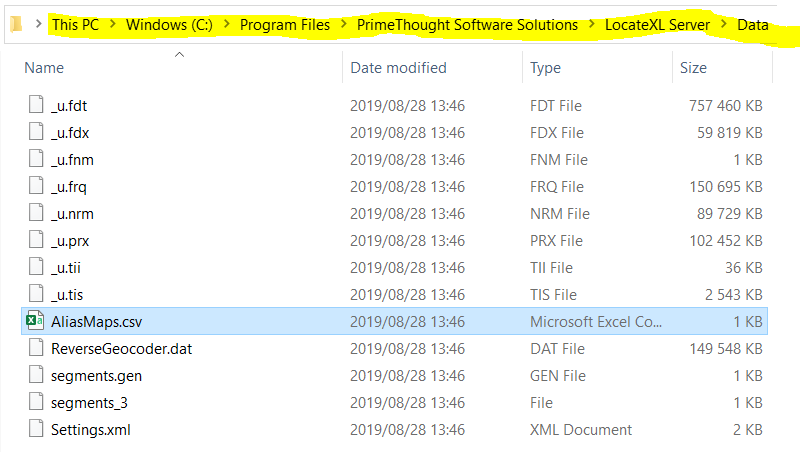
❖Go to the following location of your Geocode Data and open AliasMaps.csv.
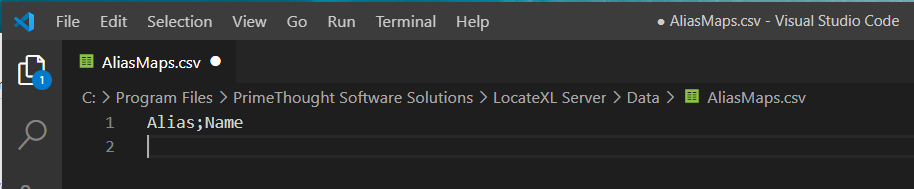
❖Type in any applicable aliases and names.
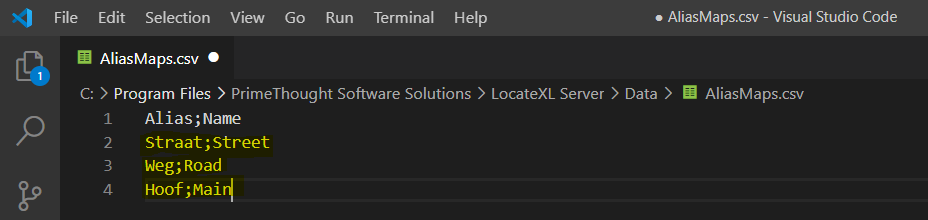
❖Save your changes.
❖To adjust further settings for your Geocoding, open the Settings.xml file.
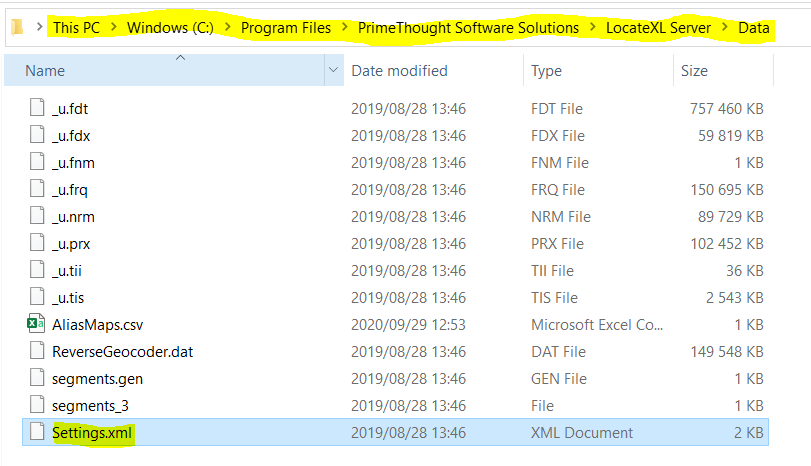
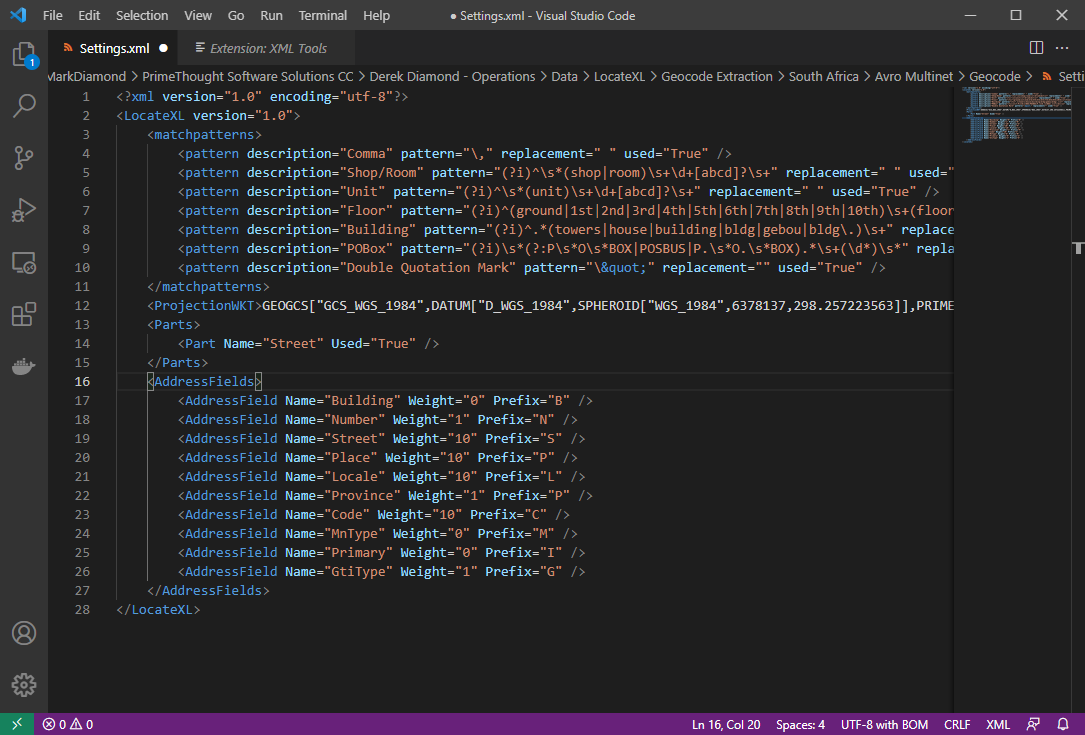
❖The part used in the Geocode Data by default is Street.
❖The various Weight settings set up in the XML file above is the default and is suggested. They can be adjusted as needed.
❖Place refers to Suburb.
Locale refers to Town.
Code refers to postal codes.
MnType refers to Local municipality type as published in the 2011 StatsSA spatial data release. (This field is just returned when geocoding and is not an actual weight to adjust.)
Primary refers to Area based primary land use per EA. (This field is just returned when geocoding and is not an actual weight to adjust.)
GtiType is another classification type for example Metro Urban, Non-Metro Urban, etc. (This field is just returned when geocoding and is not an actual weight to adjust.)
The rest of the fields are self-explanatory.
❖ The codes (Prefixes) that will show up in the geocode results indicating what matched can be changed here for the different fields as well, if you don't want a field returned in your results you can make it's prefix blank by putting two double quotes "".
❖Save your settings when you are done.
❖Go to the following location to adjust the maximum number of records that have a match when Geocoding, and the maximum number of records that match that are outputted on the web.
❖Open the PrimeThought.Spatial.LocateIQ.WinService.exe.config file to adjust these settings.

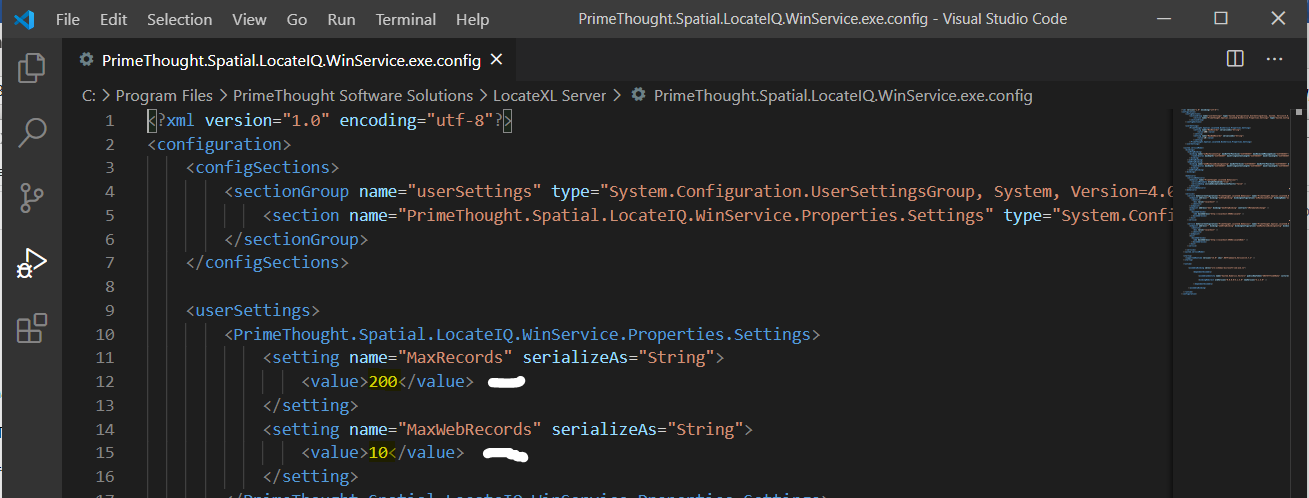
❖The MaxRecords by default is 200. The MaxWebRecords by default is 10. This can be changed and saved.
❖This URL was used for testing and output XML:
http://localhost:59602/LocateWeb/geocode?address=203%20gosforth%20crescent%20Kyalami
❖For a structured Geocode and more accurate output, you would type in this same URL address like this:
http://localhost:59602/LocateWeb/geocode?address=Number:203 Street:Gosforth Place:Kyalami
Note: The address field name and structure when typing out the URL address, for example ‘Number:’ must be the same as noted in the Settings.xml above.
Bulk Geocode Service
LocateXL Server has the ability to bulk process addresses in CSV files placed in a directory and automatically processes them and copies them to an output directory.
To do this, simply create an Input folder, where you will place your CSV files, and an Output folder where the processed CSV files will be placed. Alternatively, you can use the default "input" and "output" folders that come with the standard installation in the installation directory here: "C:\Program Files\PrimeThought Software Solutions\LocateXL Server".
Bulk Geocode Service Configuration
To configure the bulk geocode service, open the "PrimeThought.Spatial.LocateIQ.WinService.exe.config" file in the installation directory over here: "C:\Program Files\PrimeThought Software Solutions\LocateXL Server".
You will configure the following fields in this file:
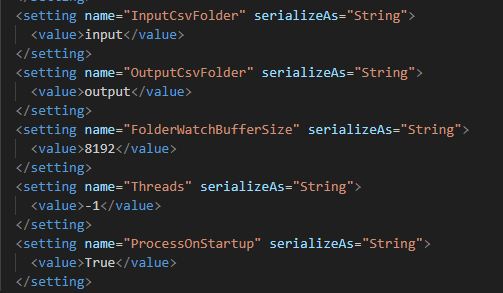
An explanation of these fields follow.
•InputCsvFolder: The input folder where you will place your CSV files to be processed. If you just put the name of the folder here, that folder will be looked at as relative to the installation directory. If you have created your folder elsewhere you must put the full path here.
•OutputCsvFolder: The output folder where your geocoded CSV files will be placed. If you just put the name of the folder here, that folder will be looked at as relative to the installation directory. If you have created your folder elsewhere you must put the full path here.
•FolderWatchBufferSize: This is a temporary memory area created to process the CSV files as they are loaded into memory. The default number works good as a default but if you get any memory error you can increase this to a higher number.
•Threads: This is the maximum number of processing threads to use, as the service can process in parallel. If set to -1 this will use the total number of CPU cores you have on your machine. If set to 0 it will use only one thread at a time. Using a higher number of threads makes the processing faster.
•Process On Startup: If this field is set to "True" then the service will process any files in the input directory on startup. If this is set to "False" then it will only process files that are newly added while the service is running. This is normally good to set as "True" so that if for some reason the service stops, then it will resume processing whatever files were in your input on starting up again.
Bulk Geocode Service Input and Output
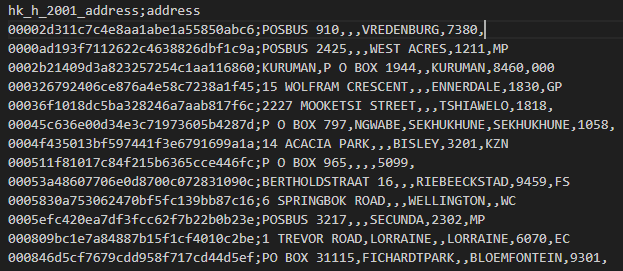
As input, the service simply needs there to be two columns in the CSV file: the first column should be an ID column that you can link back up to when you get the output; the second column should be the address column. Further, the CSV file should be semi colon delimited. Any further columns in the CSV file can exist but will be ignored.
Here is an example of the data in the input CSV file:
Once the input file is processed it will automatically be renamed with the word "processed" appended to it.
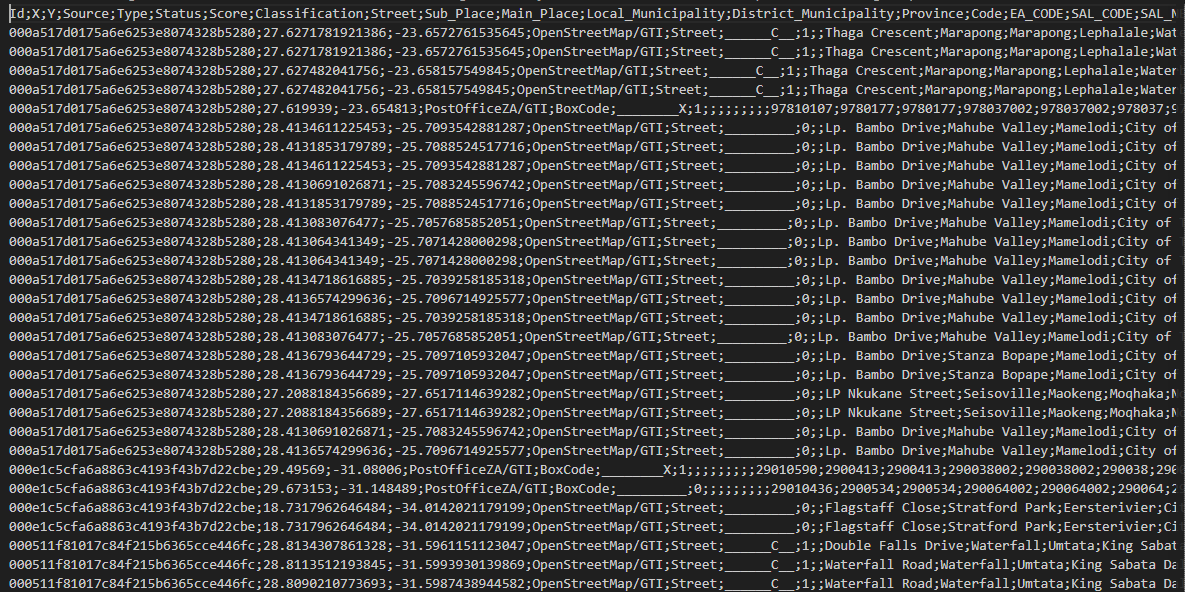
The geocoded file will be placed into your output directory that you specified and will be named exactly the same as the original input file.
Here is an example of the output file with all geocoded fields (the ID will be repeated according to the maximum number of matches you set for each record earlier in the service configuration):
Note: If you place a new CSV file with the same name into your input folder, it will automatically overwrite the current file that has the "processed" prefix when the file is processed newly.
Support
|
||||||
|
T: +27871354351
|
|||||