§ THE MAP NAVIGATION TOOLS ALLOW YOU TO PAN AND ZOOM AROUND YOUR MAP.
• The easiest way to navigate is to use the PAN tool and your mouse scroll wheel:
• Click the PAN button and click and drag your mouse cursor on your map to move around.
• Use your mouse scroll wheel to zoom in and out.
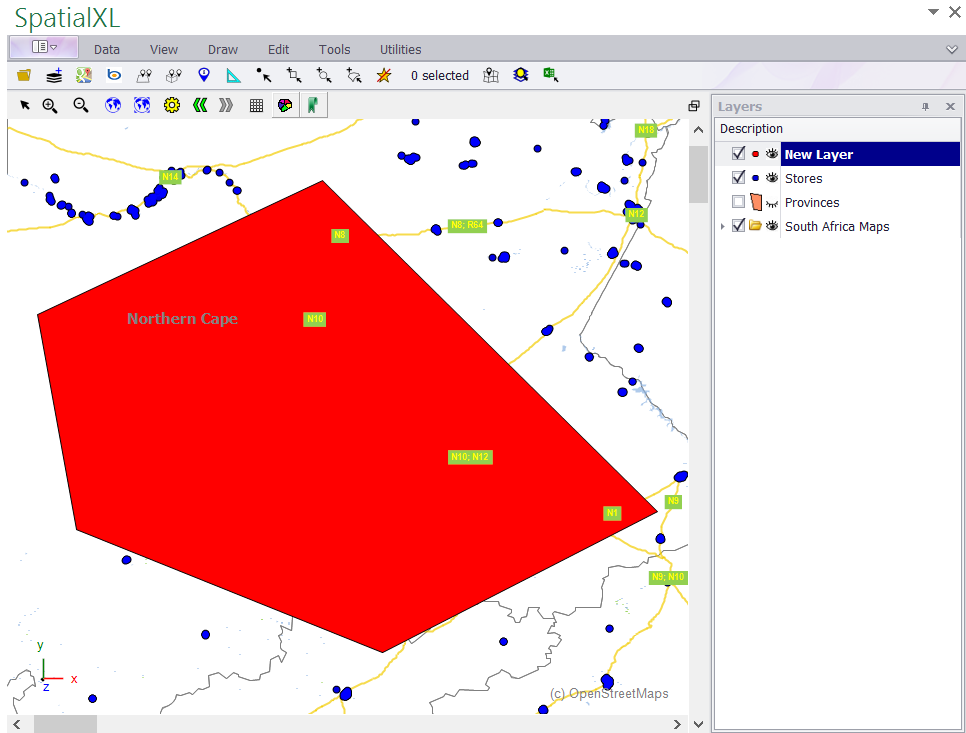
• You can also zoom in and out using the ZOOM buttons:
Draw a square over the area you want to zoom in or out to, or click with the left mouse button on your map to zoom in or out incrementally.
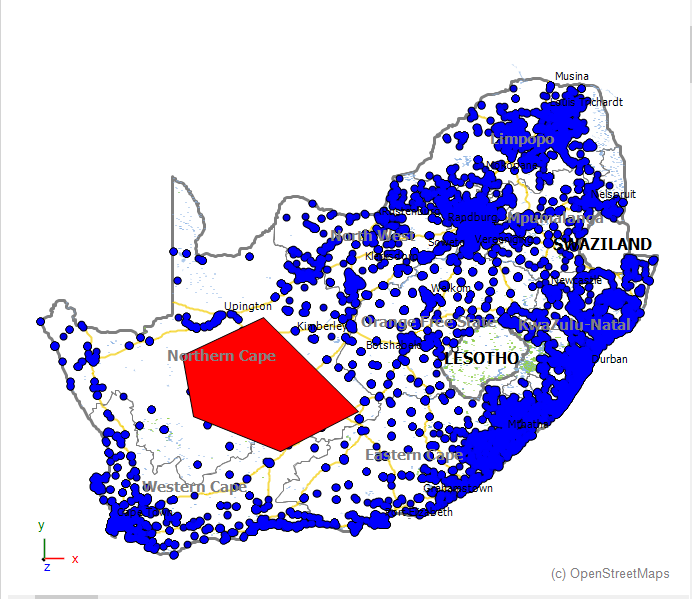
• The two ZOOM FIT buttons (globes) allow you to zoom to the extent of your data:
• The first globe will zoom to the extent of all your map layers.
• The second globe will zoom to the extent of one map layer only - the one you have selected in your Layers Description box.
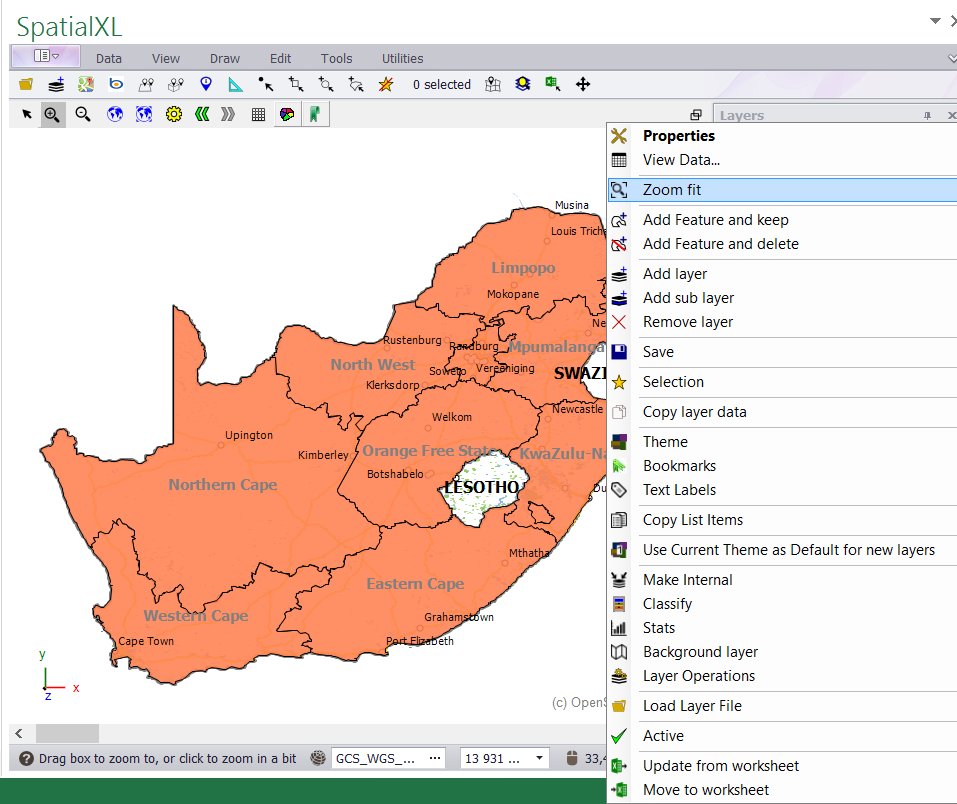
(You can also right click a layer in your Layers Description box and click ZOOM FIT to zoom to that layer.)
• Click the ARROW buttons to zoom back to or from your previous viewing extents at any time.
|




Copyright (c) PrimeThought Software Solutions CC